How-To Guide · November 2, 2026
How to Prompt AI to Fix Website Accessibility Issues (WCAG)
How to prompt AI to fix website accessibility issues: scan first, paste the exact failures, fix one WCAG category per prompt, and re-test, with real results Reddit users reported.
TL;DR
- To prompt AI to fix website accessibility issues, run a free scan first, paste the exact failures into the AI, and ask it to fix one category at a time against WCAG 2.1 AA instead of just saying "make this accessible."
- Specific constraints (contrast ratio, visible labels, focus styles, tap target size) get far better fixes than vague requests.
- Fix in this order: alt text, form labels, contrast, keyboard and focus, then headings and page titles.
- Re-scan after every prompt and do a quick keyboard test, because a scanner score is not proof the site is accessible.
AI builders produce sites that look finished but often skip the stuff screen reader and keyboard users need. The good news: most of it is fixable with the right prompts. Here's the process.
How to Prompt AI to Fix Website Accessibility Issues (Step by Step)
1. Scan the site before you prompt
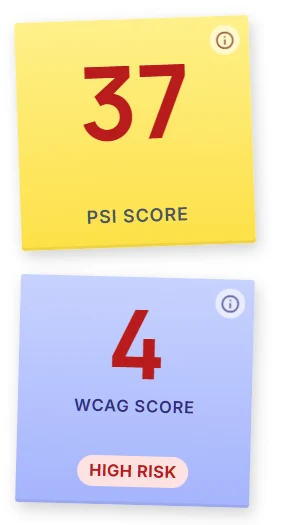
Run Lighthouse (Chrome DevTools, Accessibility category), WAVE, or axe DevTools on the live page. Copy the list of failures, not just the score. If you're prospecting, Locasly already shows a WCAG accessibility score next to the PageSpeed score for each business, so you can spot sites that need this work before you even open them.
2. Paste the exact failures and set the standard
Give the AI the scan output and a clear target. Ask it to plan before it touches code:
Here is an accessibility scan of my site: [paste failures].
Target: WCAG 2.1 AA. Don't change the design, copy, or layout.
First, list every issue grouped by type (images, forms, contrast,
keyboard/focus, headings) with the element it affects.
Don't write any code yet.
3. Fix one category per prompt
Big "fix everything" prompts tend to break other things. Go category by category, and spell out the rule:
Fix only the form and button issues:
- Every input gets a visible <label> tied to it with for/id.
  Placeholder text is an example, not the label.
- Icon-only buttons and links get an aria-label that says what they do.
- Replace clickable divs/spans with real <button> or <a> elements.
- Keep a visible focus outline on every interactive element
  (at least 3:1 contrast). Don't remove outlines.
- Tap targets at least 44x44px.
Don't change anything else.
Then repeat for contrast ("all text at least 4.5:1, large text 3:1; darken colors, don't change the palette"), images ("descriptive alt on meaningful images, alt="" on decorative ones"), and structure ("one h1, headings in order, lang on html, a skip-to-content link, a real page title").
4. Re-scan and do a keyboard test
After each prompt, run the scan again and tab through the page with no mouse. You should always see where focus is, reach every menu and button, and close popups with Esc. Read the alt text yourself, because AI tends to repeat the same generic phrase.
5. Save the rules for next time
Paste the same accessibility rules into the first prompt of every new site so you don't have to fix it later. Our guide to prompting AI to fix a slow website uses the same measure-plan-fix loop for speed.
What Reddit users reported
- One developer said they kept telling Claude to "make this accessible" and it added alt text and quit. After switching to specific constraints (keyboard-only users, 44x44px targets, logical tab order) and testing with real users, their latest audit passed with minor fixes. Real testers also found a dropdown that took 47 tab presses to reach.
- One Lovable user attached a full Lighthouse report to three prompts and found the score would improve, then drop again with the next prompt. That's why you re-scan after every change.
- One redditor who read through 50+ ADA lawsuits from early 2026 said the same five issues kept showing up: missing alt attributes, unlabeled form inputs, low contrast, keyboard traps in popups, and no skip link. One site they saw had 120+ violations flagged in the complaint.
Why this matters if you sell websites
Accessibility fixes are an easy, concrete upsell for local business sites. When you audit a site before you pitch, a low WCAG score gives you something specific to show the owner. You can also generate a new site with Locasly's AI website generator, or copy its prompt into another AI builder and add your accessibility rules to it.
FAQ
Can ChatGPT make my website ADA compliant?
It can fix a lot of the code-level problems, but no AI or scanner can guarantee compliance. Scan, fix, then test with a keyboard and, ideally, a screen reader.
What's the best prompt to make a website accessible?
One that names the standard (WCAG 2.1 AA), lists the exact failures from a scan, and gives specific rules like contrast ratios and visible labels, one category at a time.
Does a 100 Lighthouse accessibility score mean my site is accessible?
No. Lighthouse only checks what it can test automatically. Keyboard focus and tab order still need a manual check.
Why does my AI builder keep breaking accessibility fixes?
Later prompts can rewrite components. Tell it to change only one thing per prompt, and re-scan after every edit.
Steps at a glance
- Scan the site before you prompt
Run Lighthouse, WAVE, or axe DevTools and copy the list of failures.
- Paste the exact failures and set the standard
Give the AI the scan output, target WCAG 2.1 AA, and ask for a grouped plan before any code.
- Fix one category per prompt
Forms and buttons, contrast, images, then structure, with specific rules and no other changes.
- Re-scan and do a keyboard test
Scan again after each prompt and tab through the page with no mouse.
- Save the rules for next time
Put the accessibility rules in the first prompt of every new site.