How-To Guide · October 25, 2026
How to Make a Website Mockup to Pitch a Local Business
How to build a quick website mockup for a local business, make it feel like theirs, and send a free preview that starts the conversation.
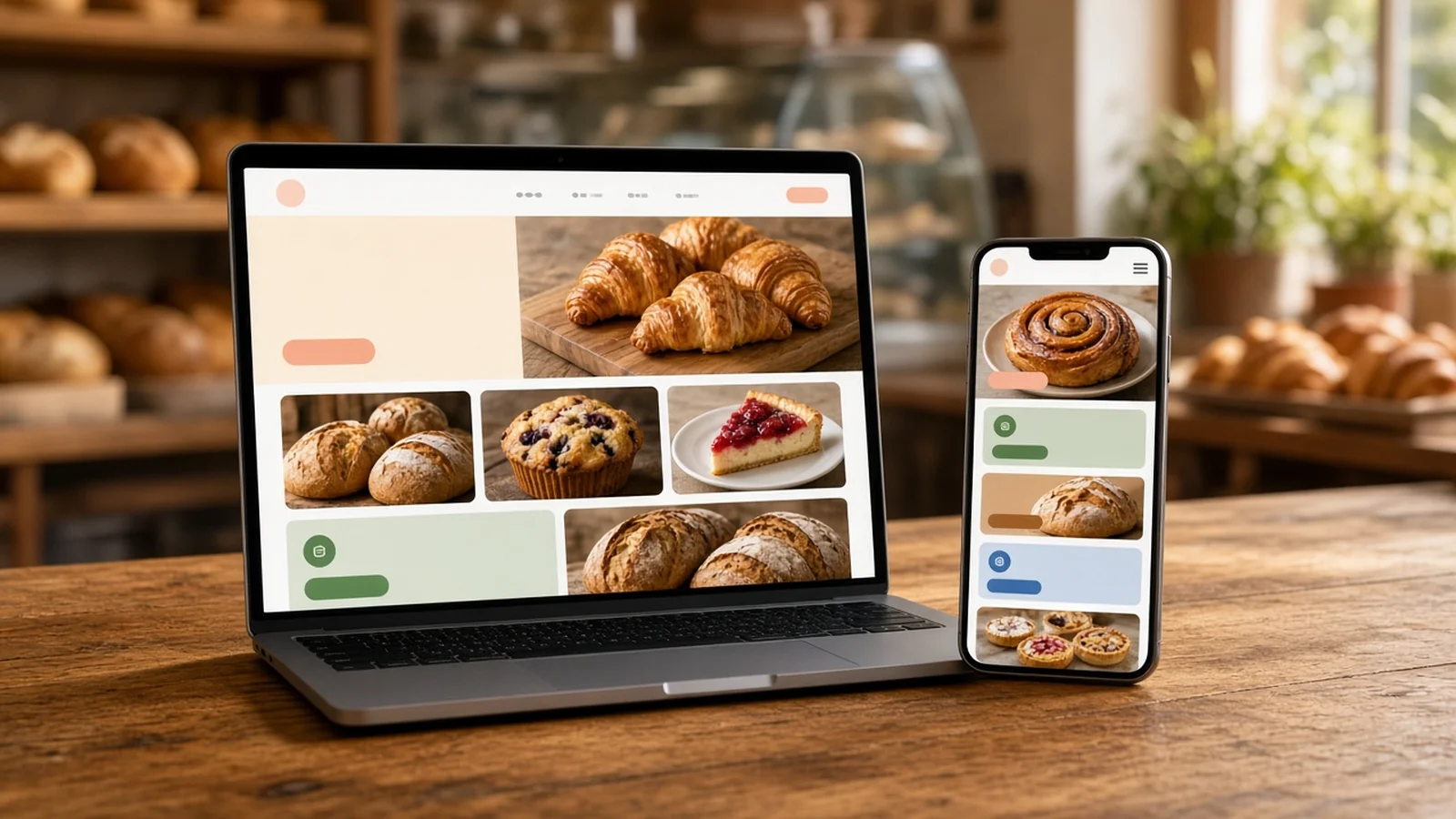
A website mockup is a quick preview of what a business's new site could look like. For a freelance web designer, it's one of the easiest ways to pitch a local business: instead of describing a website, you show the owner one with their own name on it. This guide walks you through making a mockup that's fast to build and easy to say yes to.
Why pitch with a mockup?
- It makes the idea real. Most owners find it hard to picture a website from a description. A preview removes the guesswork.
- It shows you did your homework. A mockup built around their services, hours, and reviews proves the pitch isn't a copy-paste message.
- It starts a conversation. "Can I send you a free preview?" is an easy question to say yes to.
How to make a website mockup to pitch a local business: 6 steps
1. Pick a business that actually needs a new site
A mockup works best when the need is obvious: the business has no website, its site is down, or its current site is slow or hard to use. In Locasly, you can filter prospects by No Website, Website Down, or Has Score, and check each site's PageSpeed and WCAG accessibility scores before you pick one. Our guide on how to audit a local business website before you pitch covers what to look for.
2. Gather the real details
Use real information so the preview feels like their site, not a template. Collect:
- Business name, address, phone, and hours
- Main services or menu items
- Their Google rating and a few public reviews
- Photos or colors from their storefront, sign, or social pages
Locasly's prospect panel shows the address, phone, website, categories, and Google rating in one place, so you don't have to dig through tabs.
3. Generate a first draft with AI
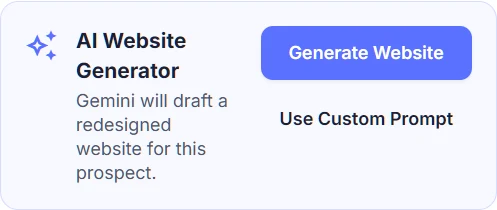
You don't need to design from scratch. Open the prospect in Locasly and use the AI Website Generator to draft a redesigned website for that business. If you want more control, choose Use Custom Prompt and tell it what to focus on, like "highlight emergency service" or "put the menu first."
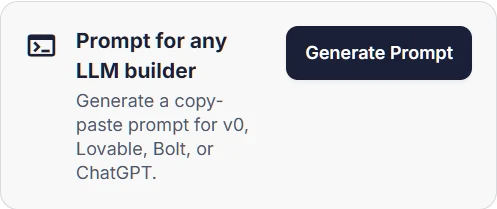
Prefer another builder? The Prompt for any LLM builder card creates a copy-paste prompt you can drop into v0, Lovable, Bolt, or ChatGPT.
4. Edit it so it feels like their business
AI gets you most of the way, but a quick review makes the difference. Check that:
- The name, phone, address, and hours are correct.
- The services match what they really offer.
- Nothing is made up, like awards, years in business, or fake testimonials.
- There's one clear call to action, such as "Call now" or "Book a table."
- It looks good on a phone, since many owners will open it there.
5. Save a preview link you can share
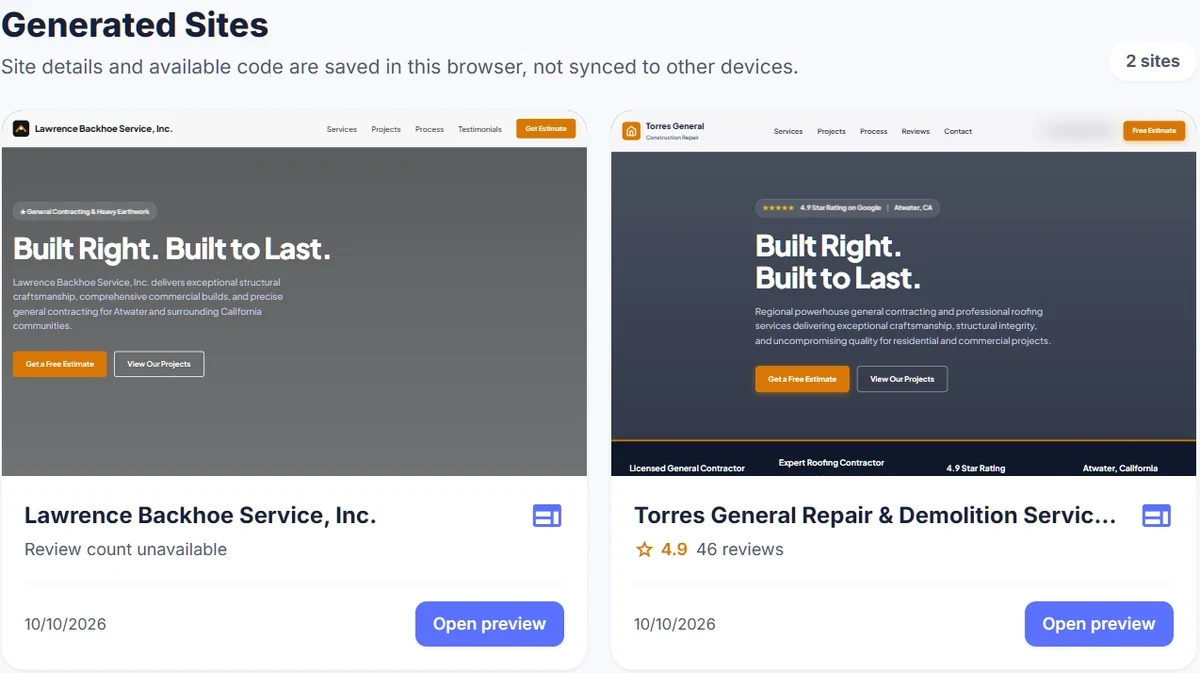
Owners should be able to open the mockup in one tap. In Locasly, sites you generate are saved on the Generated Sites page, where you can open a preview anytime. These are saved in your browser and don't sync to other devices, so use the same browser when you follow up.
6. Send it with a short, low-pressure message
Keep the pitch simple: who you are, what you noticed, and the preview. For example: "Hi, I'm a local web designer. I noticed your shop doesn't have a website, so I put together a free preview of what one could look like. Want me to send the link?" Then mark them as Contacted in Locasly's pipeline so you remember to follow up. For message templates, see how to cold email a local business to sell a website.
Tips for better mockups
- Spend minutes, not hours. It's a preview, not the final site.
- Lead with what customers need most: phone number, hours, location, and services.
- Say clearly that it's a free preview and there's no obligation.
FAQ
Should I charge for a mockup?
Most freelancers make the first preview free because it's part of the pitch. Save paid work for the real build, once the owner agrees to move forward.
How long should a mockup take?
With an AI tool, a first draft can take just a few minutes. Plan a little extra time to check the details and make it look right on mobile.
Can I use their logo and photos?
For a private preview shown only to the owner, many designers use public photos from the business's own listing or pages. Get permission before anything goes live.
What if they don't like the design?
That's still a conversation. Ask what they would change, then update it. Their feedback tells you exactly what they want in the real site.
Steps at a glance
- Pick a business that actually needs a new site
Target businesses with no website, a down site, or low PageSpeed and accessibility scores.
- Gather the real details
Collect name, contact info, hours, services, rating, reviews, and photos or colors.
- Generate a first draft with AI
Use Locasly's AI Website Generator or a copy-paste prompt for v0, Lovable, Bolt, or ChatGPT.
- Edit it so it feels like their business
Check facts, remove anything made up, add one clear call to action, and test on mobile.
- Save a preview link you can share
Keep the mockup ready to open in one tap, such as from the Generated Sites page.
- Send it with a short, low-pressure message
Explain who you are, what you noticed, offer the free preview, and track the follow-up.