How-To Guide · October 26, 2026
How to Edit an AI-Generated Website With Follow-Up Prompts
Follow-up prompts that change only what you want: save a good version, make one specific edit at a time, fence off what works, and roll back when the AI gets stuck.

An AI builder can give you a solid first draft of a local business website in minutes. The trouble starts when you ask for changes. You say "make the header better," and the AI rewrites the whole page, moves your buttons, or breaks the mobile layout. This guide shows you how to write follow-up prompts that change only what you want, so your mockup gets better instead of messier.
Why follow-up prompts go wrong
Most bad edits come from vague requests. When a prompt doesn't say exactly what to change and what to leave alone, the AI fills in the gaps on its own. Long chats make it worse, because the AI starts mixing old instructions with new ones.
The fix is simple: make one small, specific change at a time, and tell the AI what must stay the same.
How to edit an AI-generated website step by step
1. Save a version you're happy with
Before you ask for any change, make sure you can get back to a working version. Most AI builders have a version history or restore option. If yours doesn't, copy the code somewhere safe first. Then a bad edit costs you a minute, not an hour.
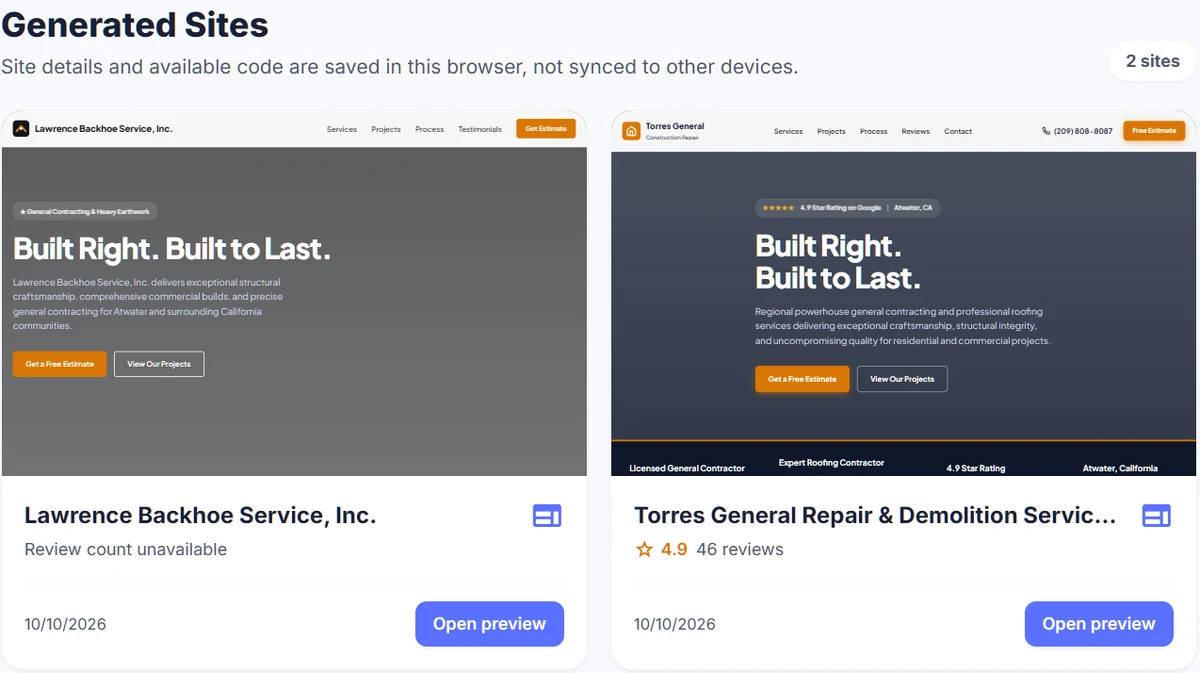
If you built the first draft with Locasly's AI Website Generator, your mockups show up on the Generated Sites page, where you can open a preview anytime. Those are saved in your current browser, so stick to the same browser when you come back to them.
2. Change one thing per prompt
Don't pack five edits into one message. Ask for one change, check it, then move on. Small prompts are easier for the AI to follow and easier for you to undo if something goes wrong.
A good order for local business sites:
- Fix the business details first (name, phone, address, hours).
- Then the hero section and main call-to-action button.
- Then services, reviews, and the contact section.
- Colors, fonts, and spacing last.
3. Point to the exact element
Name the section and the element by its visible text or position. "The button" is vague. "The 'Book Now' button in the hero section" is clear. Then say what "done" looks like.
In the hero section, change the "Learn More" button to say "Call Now"
and link it to tel:+15555550123. Make it the same lime green as the
"Book Now" button. Keep everything else exactly the same.
4. Fence off what already works
End your edit prompts with a line that protects the rest of the page. This is one of the most repeated tips from people who build with AI every day, and it works because it removes the guessing.
Only edit the services section. Do not change the header, navigation,
footer, colors, fonts, or any other section. Do not remove any content.
5. Ask for a plan before big changes
For larger edits, like adding a new page or reorganizing sections, ask the AI to explain what it will change before it touches anything. If its plan includes things you didn't ask for, correct it first. This saves a lot of back-and-forth.
6. Check the page after every edit
After each change, look at the preview on desktop and on a phone-sized screen. Click the buttons, check the phone number, and scroll the whole page. AI edits sometimes break things in sections you didn't ask it to touch.
7. Roll back and start fresh when it gets stuck
If the AI fails at the same fix two or three times, stop asking it to "try again." Restore your last good version, open a new chat, and paste a short summary: what the site is, what works, and the one thing you need changed. A clean chat usually does better than a long, messy one.
Start with a better first prompt
The fewer fixes you need, the better. A detailed first prompt with the business name, services, location, and style cuts down on edits later. Our guide on how to write a prompt for an AI website builder walks through that. In Locasly, you can also use the Custom Prompt option to steer the AI Website Generator from the start.
Once the mockup looks right, you're ready to show it to the owner. See how to make a website mockup to pitch a local business for the next step.
FAQ
Why does the AI change things I didn't ask for?
Usually because the prompt was vague or covered too many things at once. Name the exact element, ask for one change, and add a line saying what must not change.
Should I keep editing in the same chat?
For a few small edits, yes. If the chat gets long or the AI keeps repeating the same mistake, restore a good version and start a new chat with a short summary.
How specific should an edit prompt be?
Specific enough that someone else could make the change without asking you a question. Say which section, which element, what to change, and what it should look like when it's done.
Can I edit a Locasly mockup in another AI builder?
Locasly can generate a copy-paste prompt for other AI builders, so you can build or rework a site there and use the same follow-up prompt tips.
Steps at a glance
- Save a version you're happy with
Make sure you can restore a working version before asking for changes.
- Change one thing per prompt
Ask for one small edit, check it, then move on.
- Point to the exact element
Name the section and element by its visible text and say what done looks like.
- Fence off what already works
End edit prompts with a line saying which sections and styles must not change.
- Ask for a plan before big changes
Have the AI explain what it will change before it edits anything.
- Check the page after every edit
Preview on desktop and mobile and test buttons and contact info.
- Roll back and start fresh when stuck
After two or three failed fixes, restore a good version and start a new chat with a short summary.