How-To Guide · October 25, 2026
How to Optimize a Google Business Profile
An 8-step checklist for optimizing a Google Business Profile so a local business shows up and gets more calls, for your own business or your clients.
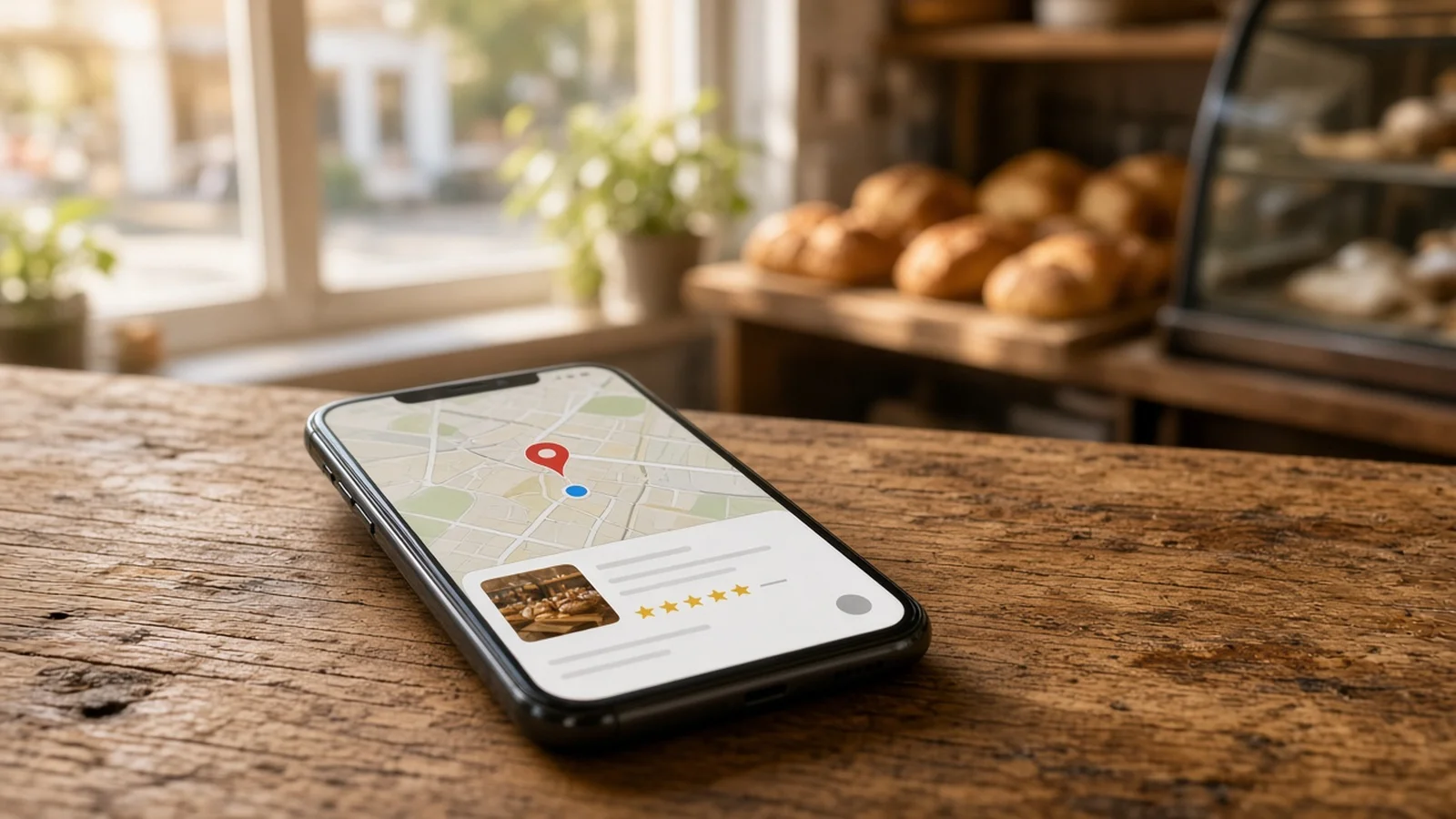
When someone searches "bakery near me" or "plumber in [city]," the first thing they usually see is a map with three businesses on it. Those listings come from Google Business Profiles. For most local businesses, a well-kept profile brings in more calls than the website does, and the two work best together.
This guide walks through how to optimize a Google Business Profile, whether it's for your own business or for a client you build websites for. It's the same basic checklist people in local SEO communities keep coming back to: right category, complete info, real photos, steady reviews, and a website that matches.
What Google looks at
Google says local results are mainly based on three things: relevance (how well the profile matches the search), distance (how close the business is to the searcher), and prominence (how well known and trusted the business is). You can't change distance, so the steps below focus on relevance and prominence.
Steps to optimize a Google Business Profile
1. Claim and verify the profile
Search the business on Google Maps and claim it if it isn't already managed. Verification tells Google you're allowed to represent the business, and Google notes that verified businesses are more likely to show up in search. If you manage it for a client, have the owner add you as a manager instead of handing over their login.
2. Pick the right primary category
The primary category is one of the strongest settings on the profile. Choose the most specific one that finishes the sentence "This business is a…", like "Mexican Restaurant" instead of "Restaurant." Add secondary categories only if they are truly part of the core business. Don't use categories as keywords or to list amenities.
3. Fill in every field, accurately
- Name: the real business name only. Adding keywords or city names breaks Google's guidelines and can get the profile suspended.
- Address or service area: a storefront shows its address; a business that travels to customers can set a service area.
- Phone and website: use a local number and link to the most relevant page.
- Hours: regular hours plus holiday hours, so people don't show up to a locked door.
- Services, products, attributes, and description: describe what the business actually offers in plain words customers would use.
4. Keep name, address, and phone consistent everywhere
The name, address, and phone number (often called NAP) should match on the profile, the website, and directories like Yelp or the local chamber of commerce. Mismatched info confuses customers and makes it harder for Google to trust the listing.
5. Add real photos and keep adding them
Upload the storefront, the inside, the team, products, and finished work. Real, current photos help people decide to visit or call. Skip stock photos, and don't bother with tricks like geotagging images; that's a common myth, not something Google recommends.
6. Get steady reviews and reply to them
Ask happy customers for a review right after a good experience, with a direct review link. A steady flow of recent reviews matters more than a big burst once a year. Reply to every review, good or bad, with a short personal note. Never buy reviews or offer rewards for them; it's against Google's policies.
7. Connect it to a website that matches
The profile's website link should go to a fast, mobile-friendly page that clearly says the service and the city, with the same NAP and an easy call button. If the site is slow or broken, people bounce back to the map and call someone else. Our guide on how to audit a local business website covers how to check speed and accessibility quickly.
8. Post updates and check Performance
Google Posts are good for offers, events, and seasonal news. They mostly help people choose you once they find you. Check the Performance tab every month to see calls, direction requests, and the searches people used to find the profile.
Turning this into a service for clients
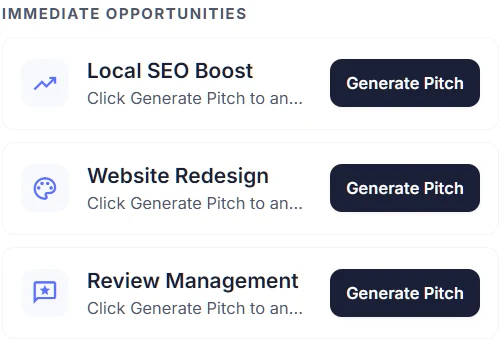
A lot of local businesses have a profile with missing hours, few photos, unanswered reviews, or a dead website link. If you sell websites, profile cleanup is a natural add-on. In Locasly, each prospect's panel shows its Google rating and review count next to its website scores, and the Immediate Opportunities section can generate a pitch for Local SEO Boost or Review Management.
If you're looking for businesses to help, start with the ones that have no site linked at all. Here's how to find local businesses without a website.
FAQ
How long does it take to see results?
It varies. Fixing categories and missing info can help fairly quickly, while reviews and photos build up over months. There's no guaranteed timeline.
Can I add keywords to the business name?
No. Google's guidelines say the name should match the real-world name. Keyword-stuffed names risk a suspension.
Do I need a website if I have a Google Business Profile?
The profile can work alone, but a good website gives Google and customers more detail, more trust, and a place to book or call.
How many categories should I use?
As few as possible. Google allows one primary and up to nine more, but only add ones that describe the core business.
Steps at a glance
- Claim and verify the profile
Claim the business on Google Maps and verify it, or get added as a manager.
- Pick the right primary category
Choose the most specific category that describes what the business is.
- Fill in every field accurately
Add the real name, address or service area, phone, website, hours, services, and description.
- Keep NAP consistent
Match name, address, and phone on the profile, website, and directories.
- Add real photos
Upload current photos of the storefront, interior, team, products, and work.
- Get steady reviews and reply
Ask happy customers for reviews regularly and reply to every one.
- Connect a matching website
Link to a fast, mobile-friendly page that names the service and city.
- Post updates and check Performance
Share offers and news, and review calls and searches monthly.